Protect / Login Protection
Change your WordPress login URL and hide wp-login.php
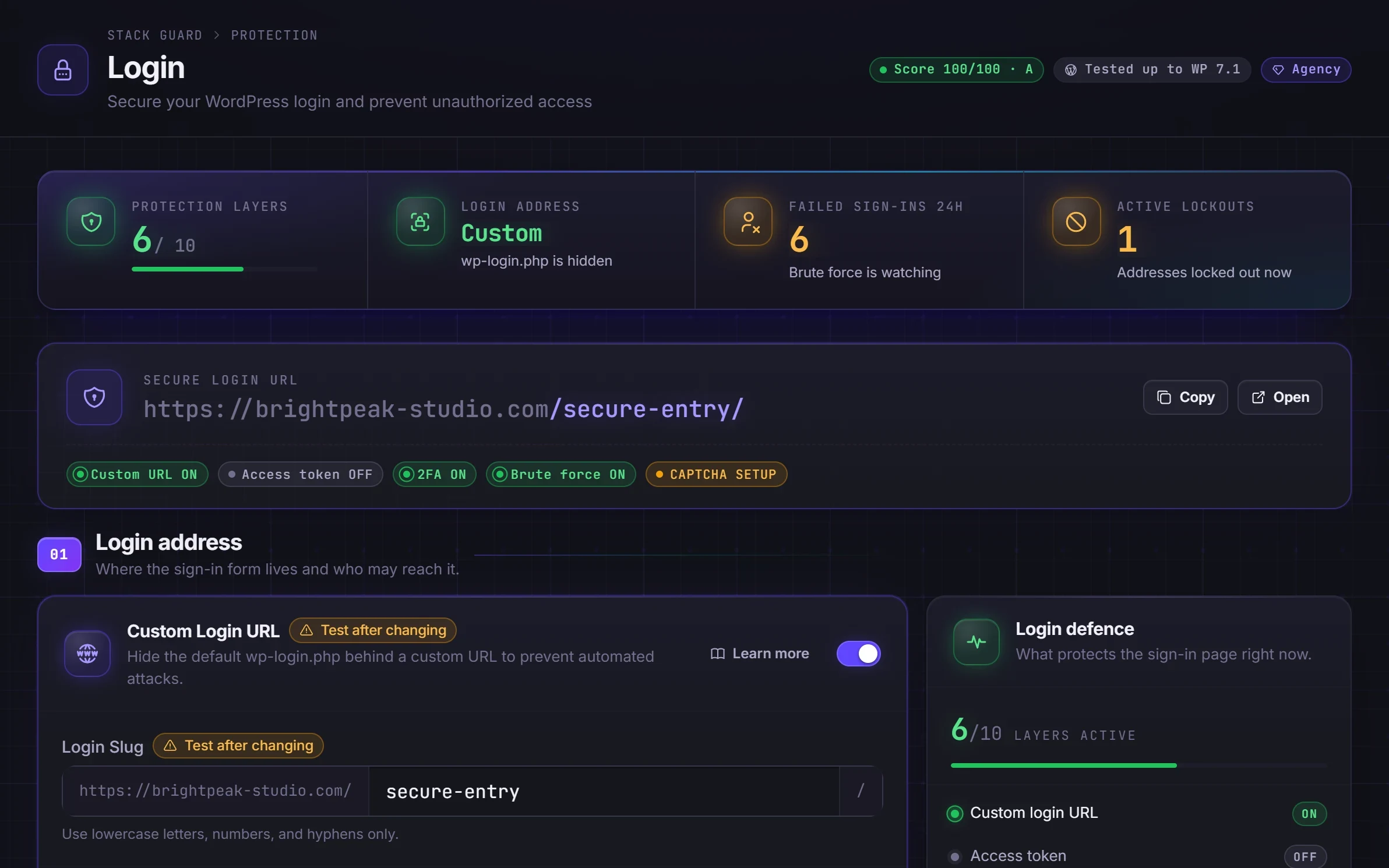
Every WordPress site shares the same default login URL, so bots try passwords there all day. Stack Guard moves your sign-in page to a custom WordPress login URL only your team knows, and decides what everyone else sees.
Why it matters
Why login protection matters
Hide wp-login.php behind your own address, choose what bots see instead, and give one vague error for wrong usernames or passwords so nobody can confirm an account exists.
Bots cannot guess what they cannot find
Most attacks are robots that visit thousands of sites a day at /wp-login.php. A custom login URL takes your site off their list, and your activity log gets quiet enough to spot anything real.
You choose what blocked visitors see
Show a 404, send them to your home page, a page you pick or another address. Nothing hints that a sign-in page exists.
No hints for password guessers
One generic error for a wrong username and a wrong password, so nobody can confirm which accounts exist.
Watch it work
Login Protection, recorded live
A real recording of Stack Guard on a demo site. Nothing staged; waiting time is cut out.
By plan
What each plan includes for login protection
Free
$0- Custom sign-in address that hides wp-login.php
- Choose what blocked visitors see: a 404, your home page, a page you pick or a redirect
- Access token and a hidden honeypot field that trips bots
- One generic error for wrong usernames and wrong passwords
Pro adds
From $95/yr- CAPTCHA on sign-in, registration, password reset and comments (Cloudflare Turnstile, reCAPTCHA v2 or v3)
- Idle sign-out and your own Remember Me length
- Magic-link unban so a locked-out person can free themselves by email
Docs
Set it up in minutes
The same plain-language help that ships inside the plugin.
Login Guard
Moves your sign-in page to an address only you know, so the robots that try passwords on every WordPress site cannot find it.
ReadSign-in errors and sessions
Stops the sign-in page from telling strangers which usernames exist, signs out sessions left idle, and caps how long "Remember me" keeps someone signed in.
ReadCAPTCHA
Adds a quick "are you human?" check to your sign-in, sign-up, password reset and comment forms, so robots cannot use them.
ReadMagic links for locked-out users
Lets a real user who has been locked out ask for a one-time sign-in link by email, instead of waiting for the lockout to end or calling you.
ReadWhy the default WordPress login URL gets attacked
Every WordPress site signs in at the same address: your site name followed by /wp-login.php, with the admin area at /wp-admin. Anyone can guess that, and so can every robot on the internet.
Most attacks on WordPress are not people. They are robots that visit thousands of sites a day and try passwords at the usual address. Each attempt makes your server do work, and the noise buries the few events in your log that matter.
A custom login URL does not replace a strong password. It takes your site off the automated lists, so far fewer guesses ever arrive. It works best alongside two-factor sign-in and lockouts: a hidden door is good, and a hidden door with a good lock is better.
How Stack Guard changes your WordPress login URL
Stack Guard intercepts requests instead of renaming core files, so WordPress itself is untouched and updates keep working. Once the custom address is on, anyone who is not signed in and visits /wp-login.php or /wp-admin gets the response you chose, not a sign-in page.
Your sign-out, lost password and registration links, and the links in password reset emails, update themselves to the new address.
- Open the Login tab and switch on Custom Login URL, then type a slug such as team-door. Use lowercase letters, numbers and hyphens, and avoid obvious words like login or admin.
- Choose what people see at the old address: a 404 page (the safest choice), a redirect to your home page, a WordPress page you pick, or any address you type.
- Optional access token: a secret word on the end of your sign-in address. Without it, even someone who knows your slug gets the blocked response. Remember the device for a number of days, or ask again every browser session.
- Optional honeypot: an invisible box on the sign-in form. People never see it, robots fill it in, and the robot is told the password was wrong. You see it in the activity log as a blocked honeypot.
- Save, then copy your new address from the top of the Login tab and bookmark it before you sign out.
Hide wp-login.php without locking yourself out
The custom login URL, access token and honeypot are in Stack Guard Free, and they keep working if a paid plan ends, so changing plans can never lock you out. It suits every site, and it is most useful on sites whose logs fill up with failed sign-ins.
Settings that can lock people out carry a Test After Changing marker. After you save, open your site in a private window and check you can sign in. If you forget the address, sign in at /wp-login.php after adding the recovery line to wp-config.php, look up the address, then remove the line.
A few things are worth knowing. When you are already signed in, opening the sign-in address shows a not found page, which is normal: go to /wp-admin instead. Some membership or login plugins expect the usual address, so give them the new one in their settings. If you use password-protected posts, their page code contains your sign-in address, so add an access token if that matters to you.
Vague errors and the rest of sign-in security
Half of a password guess is the username. With Hide Login Error Details on, a wrong username and a wrong password show the same message, so a robot cannot tell when it has found a real account. Lockout, CAPTCHA and two-factor messages still show as normal so real people know what to do. This is in every plan.
Pro adds more layers on the same tab.
- CAPTCHA on sign-in, registration, password reset and comments, with Cloudflare Turnstile or Google reCAPTCHA (Pro).
- Idle sign-out and your own Remember Me length (Pro).
- Magic-link unban, so a real person who is locked out can free themselves by email (Pro).
Questions
WordPress login URL: questions
How do I change the WordPress login URL without a plugin?
Not safely in most cases. Renaming core files breaks on every update, and server rules are easy to get wrong. A plugin like Stack Guard changes the login URL by intercepting requests, so WordPress core stays untouched and updates keep working.
Does hiding wp-login.php really improve security?
It stops the automated password guessing that hits every WordPress site at the default address. It is not a replacement for strong passwords and two-factor, which is why Stack Guard offers all three together.
What if I forget my custom login URL?
Add define( 'SMG_DISABLE_LOGIN_GUARD', true ); to wp-config.php through your hosting account. /wp-login.php works again, you can look up your address, then remove the line.
Is changing the login URL free in Stack Guard?
Yes. The custom login URL, block behavior, access token, honeypot and generic sign-in errors are all in Stack Guard Free. CAPTCHA, session controls and magic-link unban are Pro.
Will a custom login URL break my other plugins?
Usually not, but some membership and login plugins expect the standard address. If one stops working, check its settings for a login address and enter your new one. Shortcuts like /login and /admin no longer lead to the sign-in page.
Does a custom WordPress login URL slow my site down?
It should not. The check is small, and because bots that cannot find your sign-in page stop guessing there, your site usually has less work to do, not more.
More in Protect
Shut the doors attackers try first.
Put Stack Guard's login protection to work today.
Install Stack Guard Free in a minute, or go straight to Pro.