Detect / Alerts and Digests
WordPress security alerts worth reading
Too many alerts get ignored, too few miss the attack. Stack Guard sends WordPress security alerts immediately for what matters and wraps the rest into daily or weekly digests, all in one clean email layout.
Why it matters
Why alerts and digests matters
Every email in one clean layout with a plain-text version and dark mode. Immediate alerts for what matters, and daily or weekly digests that compare against the period before.
Immediate when it matters
Lockouts on every plan, plus the full alert catalogue on Pro: bans, malware findings, file changes and more.
Digests that compare
Daily and weekly digests show the period against the one before, the top blocked addresses, site changes and waiting updates.
On your terms
Quiet hours, rate limits and templates, with a plain-text version and dark mode in every email.
Real emails
The emails your team and clients receive
Rendered from a demo site with an agency's white label on. Every email has a plain-text version and a dark mode.
![Weekly digest: [Brightpeak Studio] Weekly Security Digest](/_next/image?url=%2Femails%2Fweekly-digest-dark.webp&w=3840&q=75&dpl=dpl_EnDDvyFkWaH3seN2sM9hMFHdkNps)
![Lockout alert: [{{site_name}}] An IP address was locked out](/_next/image?url=%2Femails%2Falert-ip_lockouts-dark.webp&w=3840&q=75&dpl=dpl_EnDDvyFkWaH3seN2sM9hMFHdkNps)
![Malware alert: [Brightpeak Studio] Malware scan finished: 1 issue found](/_next/image?url=%2Femails%2Fmalware-scan-dark.webp&w=3840&q=75&dpl=dpl_EnDDvyFkWaH3seN2sM9hMFHdkNps)
![File changes: [Brightpeak Studio] Files changed on your site](/_next/image?url=%2Femails%2Ffile-changes-dark.webp&w=3840&q=75&dpl=dpl_EnDDvyFkWaH3seN2sM9hMFHdkNps)
![Sign-in code: [Brightpeak Studio] Your verification code](/_next/image?url=%2Femails%2F2fa-code-dark.webp&w=3840&q=75&dpl=dpl_EnDDvyFkWaH3seN2sM9hMFHdkNps)
By plan
What each plan includes for alerts and digests
Free
$0- Lockout alerts
Pro adds
From $95/yr- The full alert catalogue
- Hourly batches, daily and weekly digests
- Quiet hours, rate limits and templates
Agency adds
From $245/yr- Your name, logo and footer on every email
Docs
Set it up in minutes
The same plain-language help that ships inside the plugin.
Email alerts
Emails you when something important happens: a lockout, a new administrator, malware, changed files, updates waiting and more. You pick which alerts, who gets them and how fast.
ReadQuiet hours, limits and digests
Keeps alerts useful instead of overwhelming: hold them overnight, cap how many arrive, and get one summary email a day or a week.
ReadAlert email templates
Edit the subject and wording of every alert email, add details with placeholders, set the header colour, and preview or send a test before you save.
ReadWhy WordPress security alerts need to be selective
Protection works quietly, so alerts are how you hear about the moments that need a person, such as an unexpected new administrator or a malware finding, while there is still time to act.
If every event pings your phone, you soon stop reading. The goal is a small number of emails you trust: urgent ones straight away, everything else rolled into a summary.
The WordPress security alerts Stack Guard can send
The Alert Matrix on the Notifications tab lists every alert in five groups. Each alert has its own switch, a severity and a delivery choice: Immediate, Hourly summary or Digest only. Critical alerts, such as lockouts and malware found, are always sent straight away.
- Access: administrator sign-ins, new devices, password changes, new administrators and role changes.
- Threats: lockouts, repeated failed sign-ins, new bans, 404 floods and firewall blocks.
- Integrity: malware, file changes and finished scans.
- Maintenance: updates, security key reminders and licence reminders.
- Reports: the daily and weekly digests.
- Free includes the lockout alert. Pro includes the full catalogue.
Digests, quiet hours and rate limits
On Pro, the Daily Security Digest arrives every morning at 08:00 and the Weekly Security Digest on Monday at 08:00, site time. They show failed sign-ins, lockouts, bans and blocked requests with the change against the period before, the addresses with the most failed sign-ins, new administrators and role changes, changed files, new malware findings, waiting updates, the age of your last good backup and your security score. A section with nothing in it is left out, and on a quiet day you can get a one-line All Quiet email so silence never looks broken. You can also hide addresses so a digest gives counts only.
Quiet hours hold non-critical alerts overnight for the digest. A rate limit caps how many alerts arrive per hour, day or week, and combines the extras into the hourly summary or queues them. Critical alerts ignore both, so a lockout or malware alert always gets through.
Set up alerts that get read
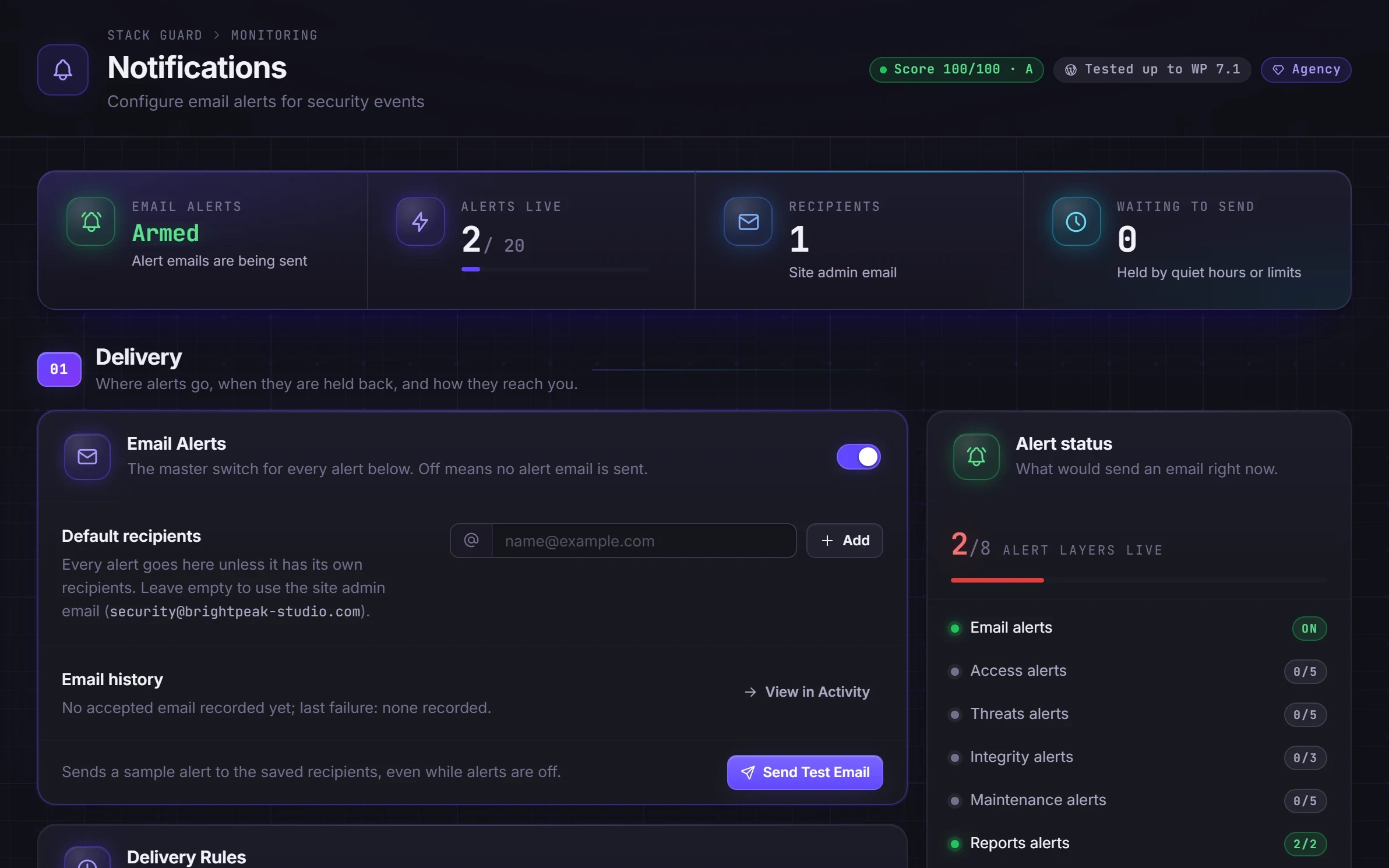
Open the Notifications tab, switch on Email Alerts under Delivery and add your recipients. Without any, alerts go to the site admin email address. Click Send Test Email and check it arrives, including the spam folder. Email from WordPress sites often lands in spam, and an email delivery plugin with a proper sending service helps.
On Pro, the Template Studio lets you edit the subject and wording of every alert, add details with placeholders, set the header colour, and preview in light or dark, at desktop or phone width, or as plain text. Every email uses the same layout, with a plain-text version and a dark version.
Slack, Microsoft Teams, webhook and text message alerts are coming soon. On Agency, your plugin name, company name, website and logo replace Stack Guard in every email.
Questions
WordPress security alerts: questions
What WordPress security alerts does Stack Guard send?
Free sends lockout alerts. Pro adds the full catalogue, including bans, failed sign-in thresholds, malware and file change findings, and daily and weekly digests.
Can I brand the alert emails for clients?
Yes, on Agency. Your plugin name, company name, website and logo appear on every email Stack Guard sends.
Will alerts flood my inbox during an attack?
Pro includes a rate limit that caps alerts per hour, day or week and combines the extras into an hourly summary, and quiet hours that hold non-critical alerts for the next digest. Critical alerts such as lockouts and malware always get through.
Are WordPress security alerts free in Stack Guard?
The lockout alert is, on every plan. Switch on Notifications and its IP lockouts alert. All other alerts, digests, delivery rules, the failed sign-in threshold and template editing are Pro.
Why do my alert emails go to spam?
Email sent directly from WordPress sites often lands in spam. Send a test email, check the spam folder, and use an email delivery plugin with a proper sending service. Stack Guard sends through WordPress, so any such plugin is used.
Can I get alerts in Slack or Microsoft Teams?
Not yet. Slack, Microsoft Teams, webhook and text message alerts are coming soon. Today alerts and digests are sent by email.
More in Detect
See trouble the moment it starts.
Put Stack Guard's alerts and digests to work today.
Install Stack Guard Free in a minute, or go straight to Pro.